Select region and language
Authenticity Imaging System
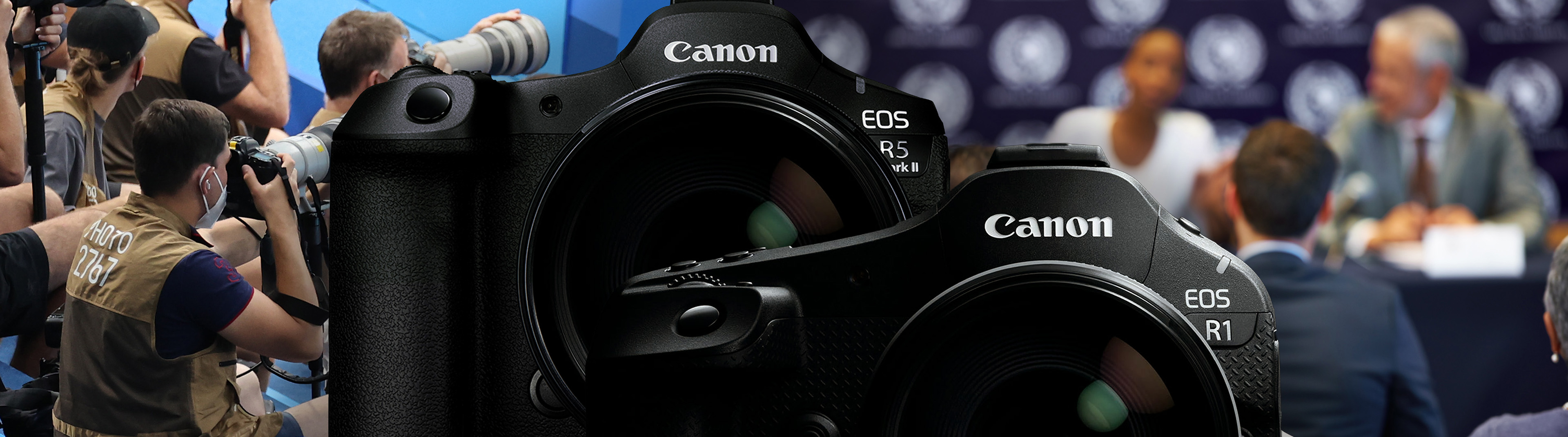
Capture the truth. Preserve the proof.
Authenticity starts the moment you press the shutter.
Canon C2PA-ready cameras—where trust begins.
For trustworthy news content
As generative AI and editing tools spread, content creation grows—so does the rapid rise and spread of fake content, posing a serious risk to society.
To protect information trust, Canon provides C2PA-ready cameras for verifying image authenticity, plus a web service to check provenance data and add timestamps. For audiences, proof of authenticity is crucial to judge what’s true. Canon helps curb the spread of fake news and misinformation.
Ensure the authenticity of images shot with Canon cameras.
Authenticity Imaging System
Canon’s Authenticity Imaging System records shooting details—such as when, with which device, and how the image was captured—as provenance in the image, based on the C2PA (Coalition for Content Provenance and Authenticity) standard, authenticated by a signing credential. It consists of C2PA-ready cameras and a web app that verifies provenance and can add timestamps after shooting. By viewing the published image’s provenance, you can confirm it was shot on a Canon camera and see how it was edited up to publication.
*The shooting date/time is recorded based on the camera’s internal clock, and the photographer is recorded based on the information set in the camera. While the record can prevent tampering after capture, it does not guarantee that the recorded time or photographer always matches the actual shooting time or person.
C2PA-ready cameras
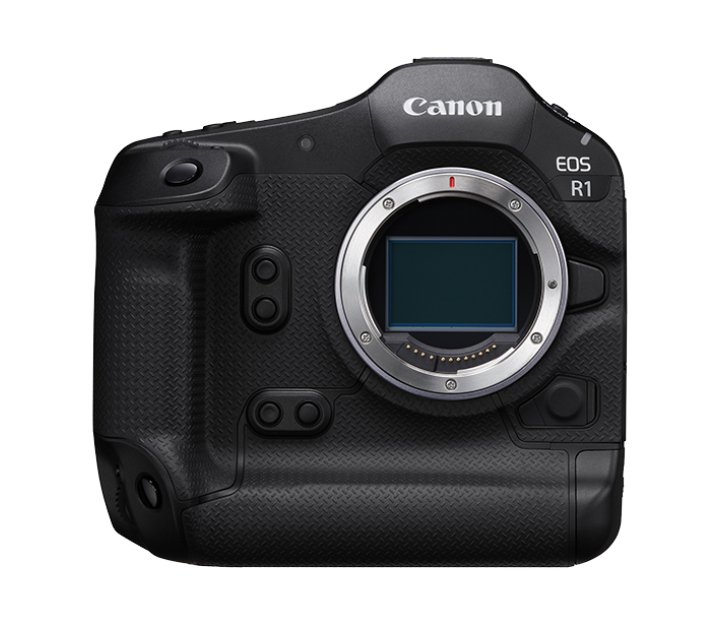
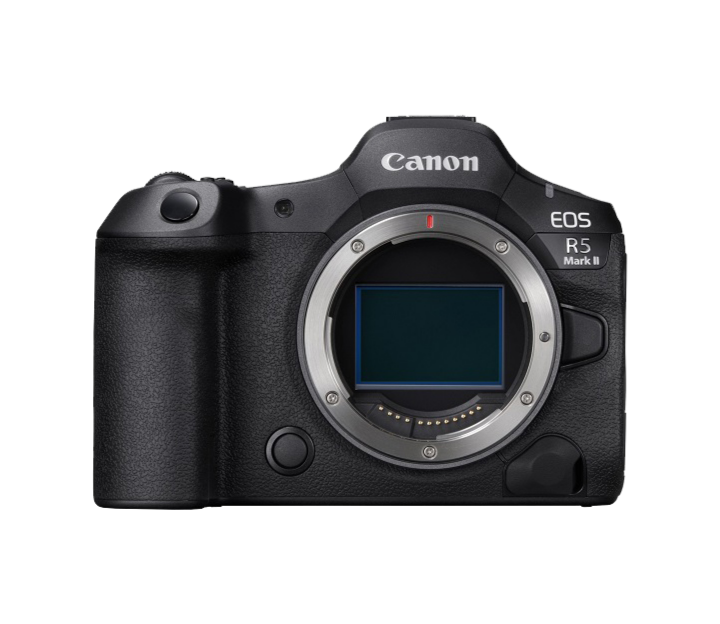
Supported camera bodies are EOS R1 and EOS R5 Mark II. To use C2PA features, paid activation of the camera body is required. (As of April 2026)
From shooting to review, edit, verify, and deliver.
C2PA workflow
The C2PA workflow starts with capturing images on a supported camera with a digital signature and provenance data. After shooting, import data from the camera to a PC and review the images and provenance. On Canon’s site, you can verify provenance and add timestamps.
If you need to edit (tone, crop, etc.), use C2PA-compliant software (e.g., Adobe Photoshop) to append new provenance. After final checks, publish the result in your news story so viewers can verify the provenance.

Canon-provided features and tools
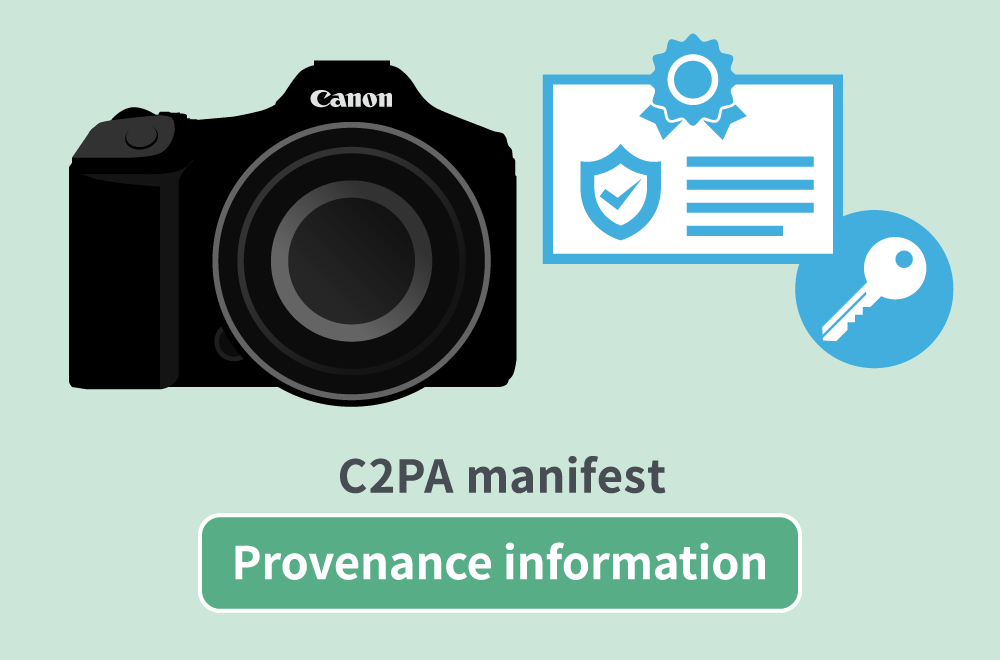
Generates a C2PA manifest recording details such as which camera was used, where and when the image was captured, and the credential that signed the image data. A private key and public-key certificate for encrypting trust data are stored in the camera body.
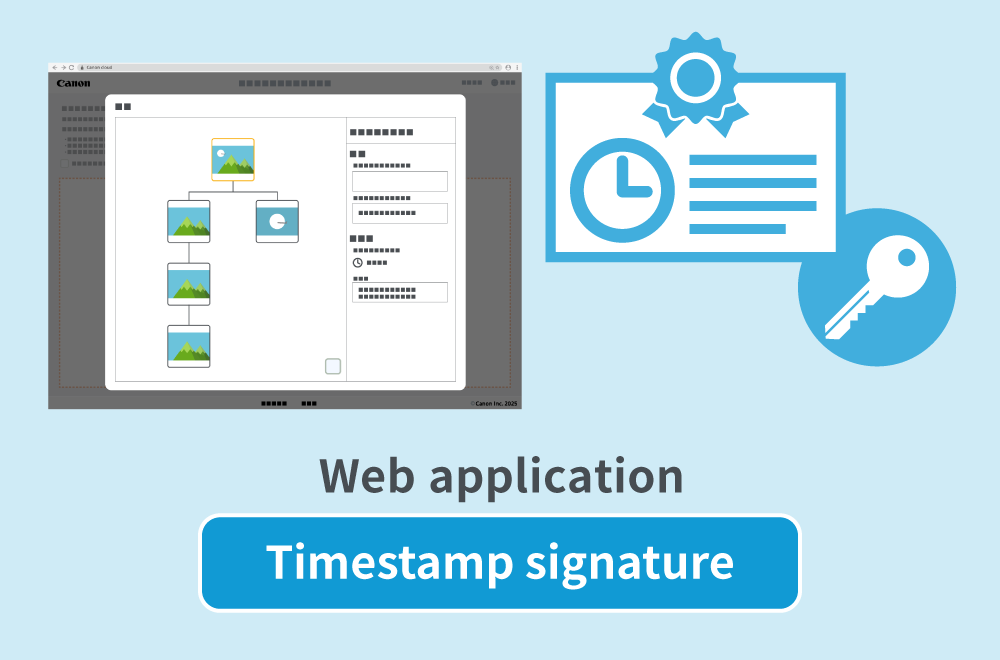
Provided as a web application to address the “provenance proof expiration” issue. It can also verify C2PA provenance of image data and display the results.
Provenance makes trust visible
Record “when, who, and how it was created/edited.”
Flow for adding provenance information
The flowchart below shows an image shot on a Canon digital camera going through edits such as filters, color correction, and cropping. Each edit adds a new C2PA manifest, while the first manifest (provenance info and digital signature) from capture remains. This allows verifiers to see the full history from the start.
Adding provenance information
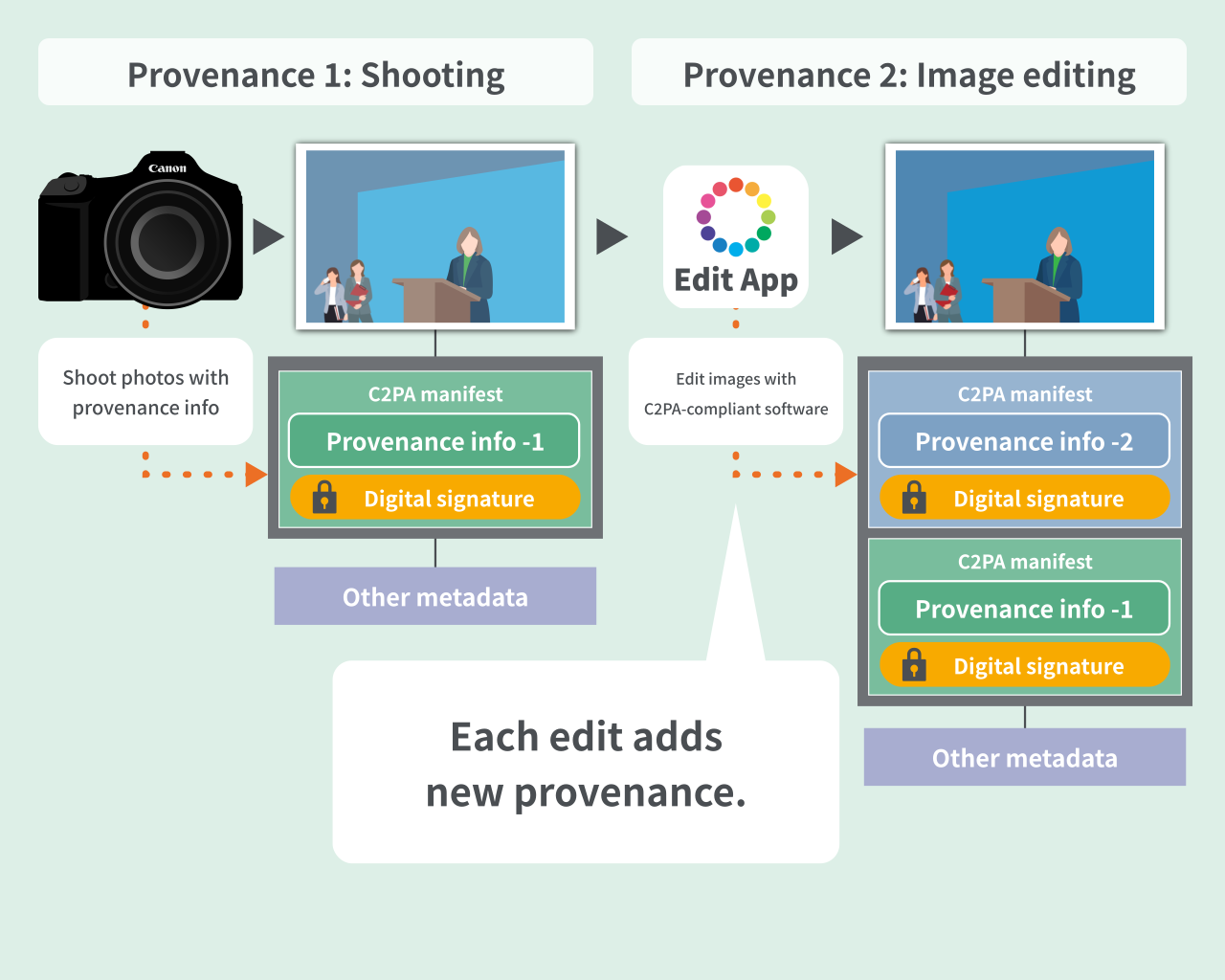
C2PA-ready cameras generate a C2PA manifest (provenance info and digital signature) that records details such as which camera, where, when, and by whom the image was shot. The private key and public-key certificate used to encrypt this information are stored in the camera body.
Verifying provenance information
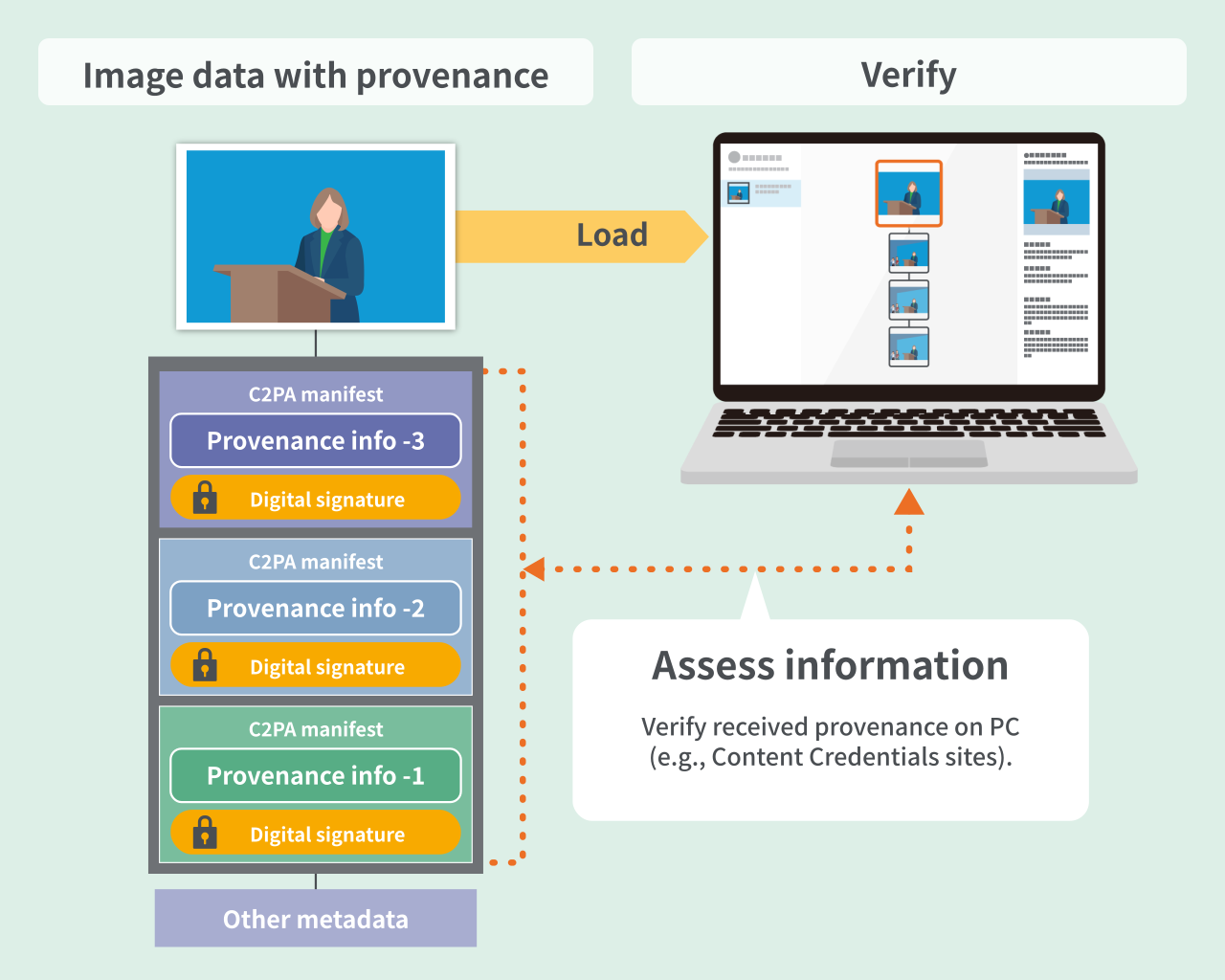
On C2PA credential verification websites, you can review an image’s provenance information. Provenance may also show items such as credential revocation status.
A mechanism to prevent tampering.
Digital signatures and public-key certificates
To show that provenance remains intact, electronic signatures based on public‑key cryptography are used. An electronic signature means “this was created at that time and has not been changed.” If the image and its provenance remain unchanged, the signature stays valid. However, if anything is altered later, the signature breaks, revealing tampering. This allows anyone to verify the trustworthiness of the image and its provenance.
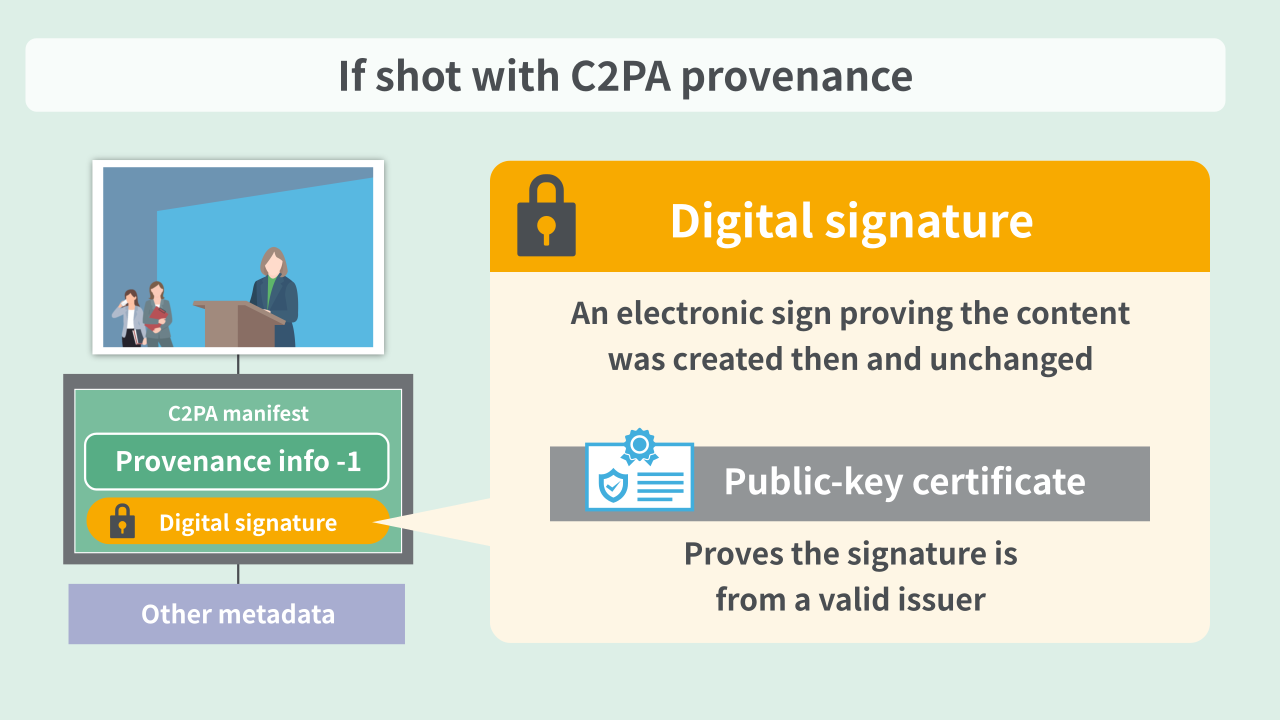
A C2PA manifest contains “assertions” (records of what edits were made, when they occurred, which applications were used, and which credentials signed those changes), “claims” (grouped assertions), and a digital certificate that encrypts the provenance information.
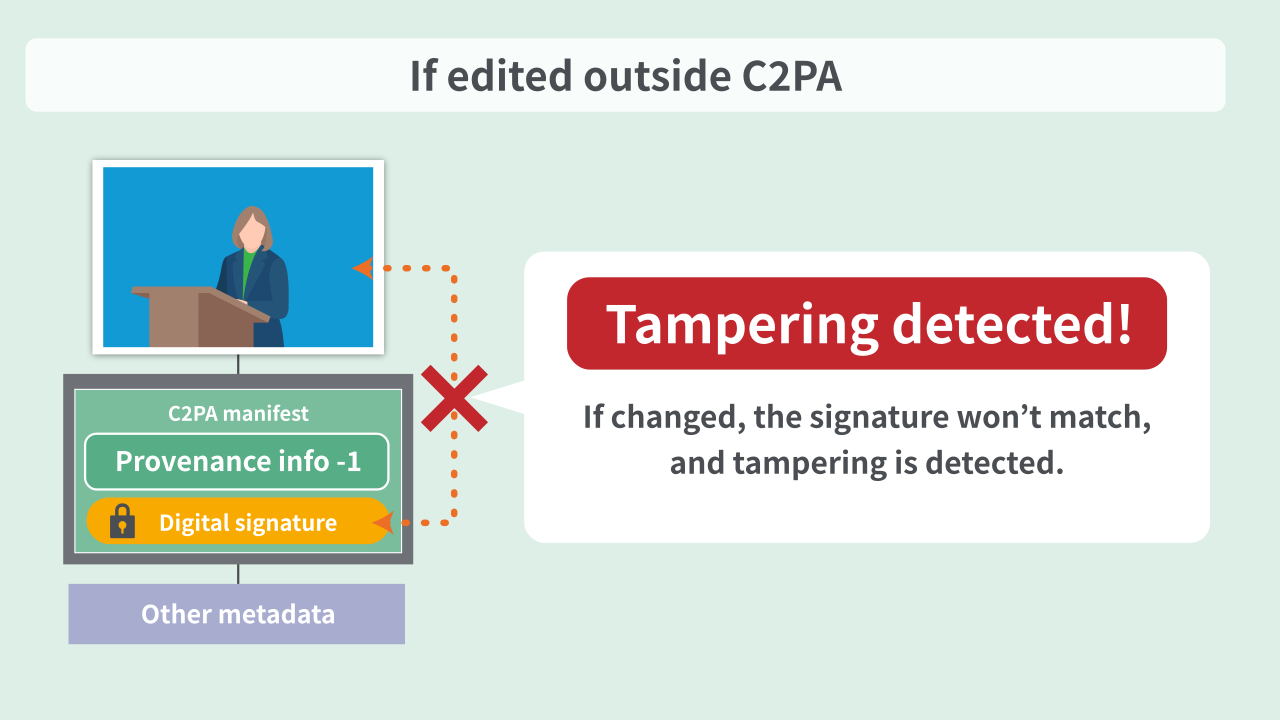
If an image is edited with non‑C2PA software, the C2PA manifest will no longer match the image state. Edits made via screenshots of a PC screen also cannot be authenticated, so viewers may judge them as fake images.
Make validity permanent
Addressing public-key certificate expiration.
Adding a timestamp signature
Provenance on captured images includes a digital signature created with the camera’s built-in public-key certificate. This certificate differs per camera and has an expiration date. Once the certificate expires, the provenance cannot be validated as-is. To address this, add a timestamp signature while the certificate is still valid. A timestamp signature proves the data existed at a specific time and keeps the provenance verifiable even after the certificate expires. Because cameras shoot offline, they cannot connect to a time-stamping authority at the moment of capture, so a timestamp is not added to images immediately after shooting. Therefore, the timestamp signature must be added after shooting.
*Digital signatures and timestamps keep the provenance information in a form that allows the validity at the time of signing to be verified later, but they do not unconditionally guarantee validity in perpetuity.
Relationship between certificate expiration and provenance proof

Add a timestamp signature to image data.
Adding a timestamp signature requires a connection to a time-stamping authority, so it is performed from an internet-connected PC. Import the image data to the PC from the camera or a server (including the client’s server) and run it with Canon’s “Timestamp Tool.”
Timestamp signature flow and Canon-provided tools
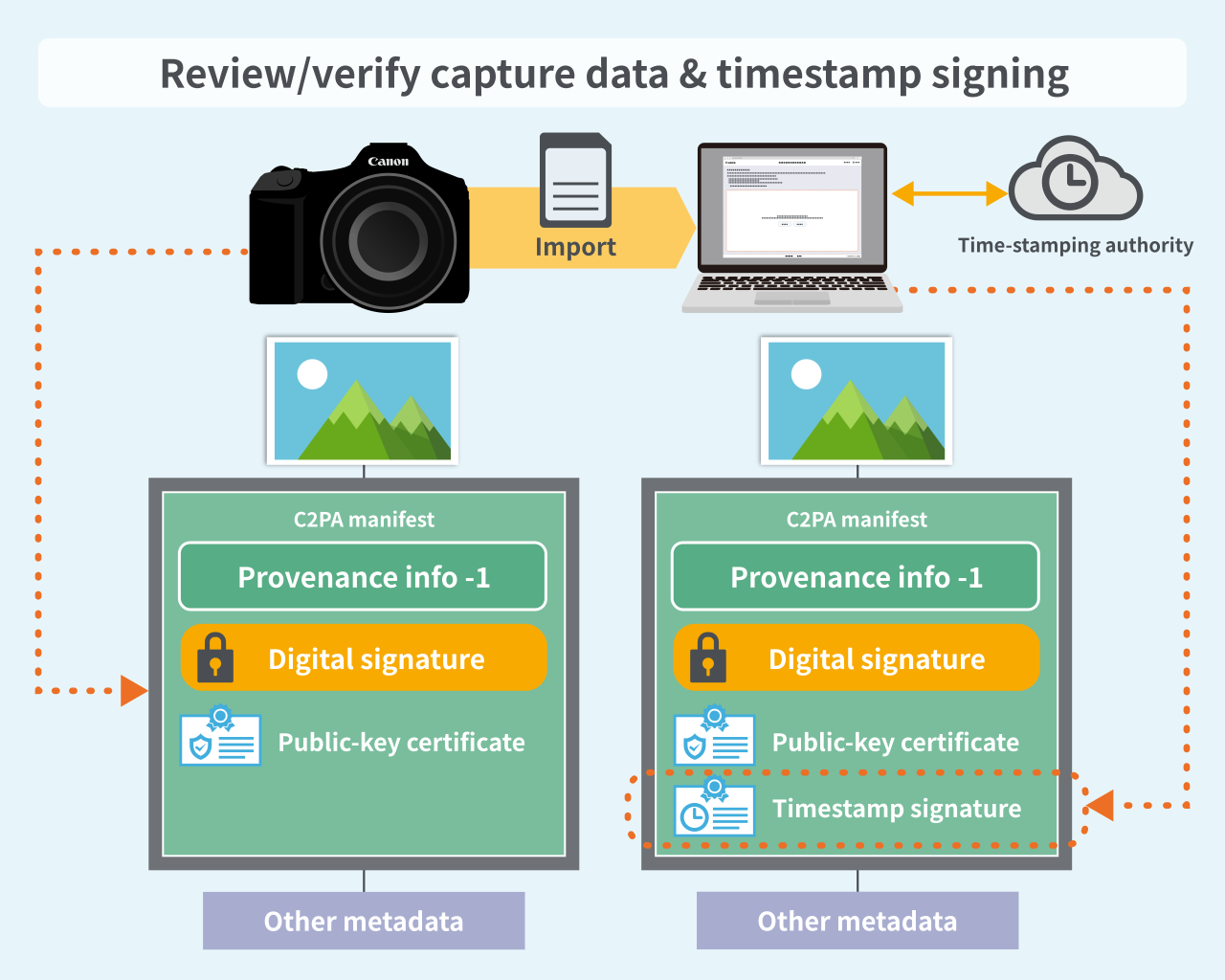
Images shot on C2PA-ready cameras do not include a timestamp.
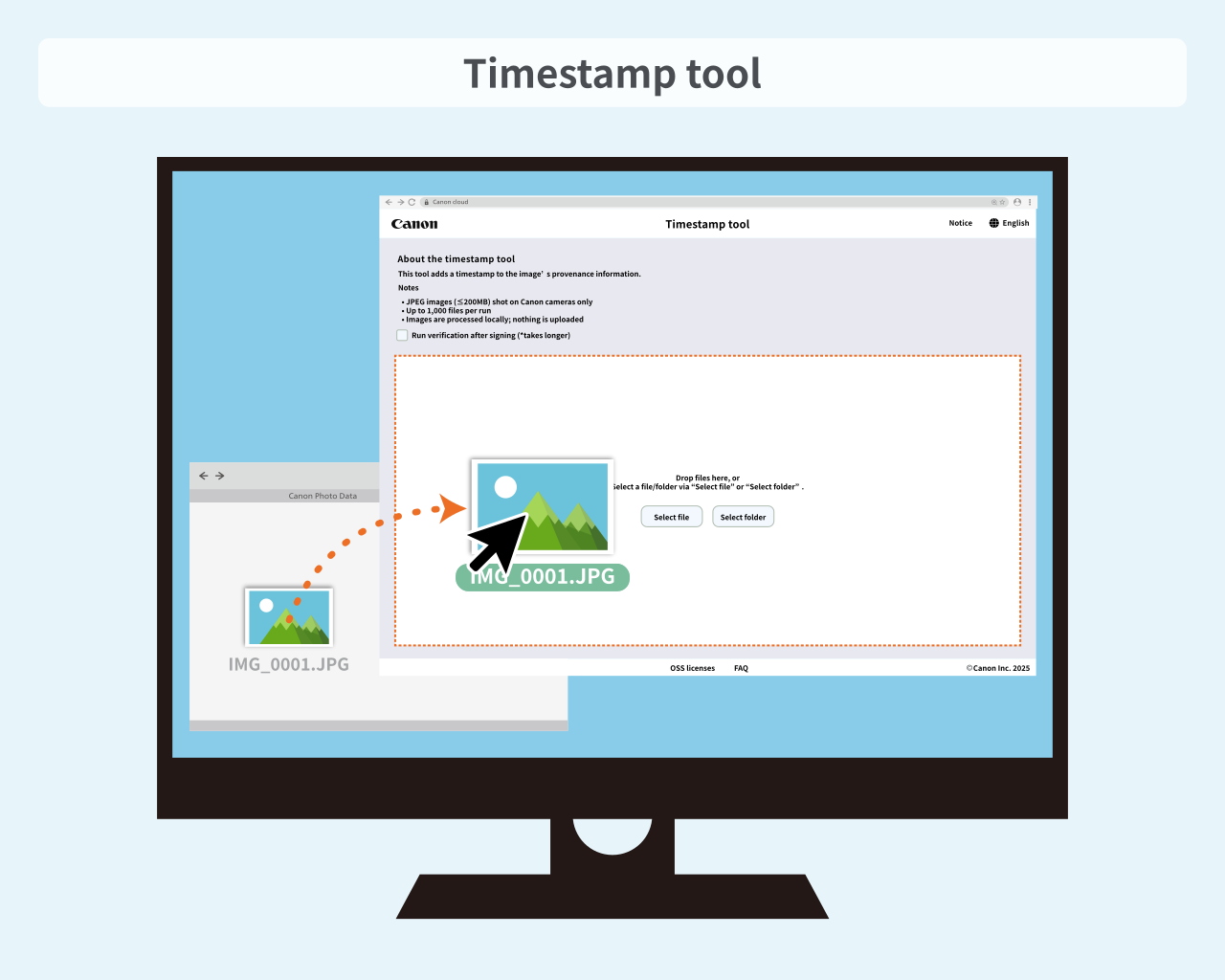
Canon’s Timestamp Tool is a web application. It processes everything in the browser without uploading data to a server. Timestamp-signed data can be downloaded as-is.
Canon’s “Timestamp Tool” can process a single image file or a folder containing multiple files. Access via the link button below and run it right away.